

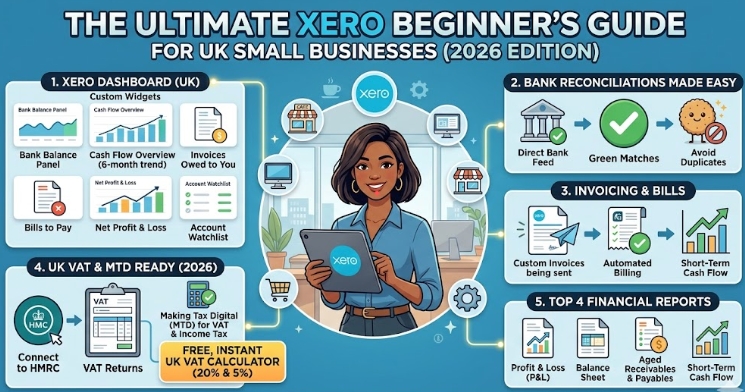
The Ultimate Xero Beginner’s Guide for UK Small Businesses (2026 Edition)
Disclaimer: This article is for informational purposes only and does not constitute professional financial or tax advice. Always consult with a qualified accountant or financial advisor for your specific business needs.
If you have ever opened Xero and immediately thought, “Where do I even start?”, you are not alone. Financial software can feel overwhelming, but it doesn’t have to be. Xero is built to be the accounting software for people who don’t like finance.
In this guide, we are going to teach you the 80% of Xero that you will actually use as a UK business owner. By the end of this tutorial, you will know how to navigate your dashboard, manage bank feeds, send invoices, handle VAT, and run essential reports without the headache.
Key Takeaways
-
The 10-Second Sweep: Customise your dashboard to show only the metrics you need daily (Bank balance, cash flow, invoices owed).
-
The Rule of 3: For every bank reconciliation, you only need to answer three questions: Who was it to/from? What was it? Why?
-
Future-Proofing: Entering your bills into Xero prevents cash flow shocks by projecting your future outgoings.
-
MTD Ready: Xero connects directly to HMRC, making Making Tax Digital (MTD) for VAT seamless.
1. Customising Your Xero Dashboard (The 10-Second Sweep)
The Xero dashboard should be your happy place. Think of it as Marie Kondo-ing your business finances. You want to ensure that as soon as you log in, you know exactly what is happening in under 10 seconds.
Essential Widgets to keep on your dashboard:
-
Bank Balance Panel: Get immediate oversight into your connected current accounts. (Tip: Remove inactive savings accounts to reduce clutter).
-
Cash Flow Overview: See your cash in and cash out trends over the last six months.
-
Invoices Owed to You & Bills to Pay: Understand your immediate future cash flow.
-
Net Profit and Loss (Year to Date): Explicit clarity on your income versus expenses.
-
Chart of Accounts Watchlist: Keep a close eye on specific nominal codes to see how much has been spent or received this month.
The Xero Task List: Updated for 2026, Xero now provides a daily to-do list telling you exactly what order to tackle your financial admin—starting with bank reconciliations.
2. Bank Reconciliations Made Easy
One of Xero’s biggest selling points is the direct, real-time bank feed. You don’t need to check your banking app and then cross-reference Xero; it all happens in one place.
When you click “Reconcile,” you will see your bank feed on the left, and on the right, you tell Xero how to categorise it. Just answer three questions: Who, What, and Why.
-
Green Matches: If an item turns green, Xero thinks it has found an exact match (like an invoice you recently sent for the exact amount). Simply click “OK” to match them.
-
Suggested Matches: If you pay a regular fee (e.g., a £15 monthly software subscription), Xero will remember your previous categorisation and suggest it for the next month, even if the amount varies slightly.
-
Avoid Duplicates: Never manually create a transaction if Xero is already suggesting a green match, as this is the most common way business owners accidentally duplicate their income or expenses.
Pro Tip: Gamify your bank recs! Set a timer and see if you can reconcile 30 items in under 15 minutes. Reward yourself with a biscuit when you beat your high score.
3. Invoicing and Bills: Preventing Cash Flow Shocks
It is your first week in business, and it is time to get paid. Navigating to Business > Invoices allows you to raise an invoice in just a few clicks.
-
Branding: Upload your logo, set your payment terms, and toggle between different visual themes for VIP clients.
-
Smart Dates: In the due date box, simply type “+14” and hit enter. Xero will automatically calculate the date 14 days from now.
-
Recurring Invoices: If you have clients on a monthly retainer, save your invoice as a recurring template to automate your billing.
Why log bills? Many business owners ask why they should log a bill in Xero instead of just categorising the payment once it leaves the bank. The answer is cash flow protection. Xero is incredibly smart, but it isn’t psychic. By logging your bills before you pay them, Xero’s short-term cash flow reports can warn you of upcoming expenses, preventing nasty financial shocks.
(821) The 15-Minute Xero Beginner Guide (2026 Edition) – YouTube
4. Navigating UK VAT & Making Tax Digital (MTD)
For UK sole traders and limited companies, staying compliant with HMRC is critical. You can find your VAT returns by clicking on Accounting > VAT Return.
Making Tax Digital (MTD) connects your Xero account straight into the government’s software. For 2026, managing MTD for VAT and MTD for Income Tax is completely streamlined within this section, pulling your categorised dashboard data straight into your digital return.
Need to calculate your VAT quickly before logging it in Xero? > Don’t waste time doing manual maths. Use our free, instant UK VAT Calculator to easily add or extract VAT at the standard 20% or reduced 5% rates.
5. The Top 4 Financial Reports You Need to Run
Once your data is in Xero, the reporting features bring your numbers to life. You can “star” your favourite reports so they appear directly in your main dropdown menu. The four essential reports every business owner should monitor are:
-
Profit and Loss (P&L): Tracks your revenue, costs, and expenses during a specific period.
-
Balance Sheet: A snapshot of what you own (assets) and what you owe (liabilities).
-
Aged Receivables & Payables: Exactly who owes you money (and how late they are), and who you owe money to.
-
Short-Term Cash Flow: Xero uses your past data and upcoming bills/invoices to project your bank balance 7 to 30 days into the future.
Final Thoughts
Financial confidence comes from repetition, not perfection. Having your financial systems properly configured in Xero is like organising a chaotic wardrobe. Once everything is tidy, categorised, and in its right place, you will actually feel excited to log in and see how your business is performing!


